

Watch the gallery tutorial on YouTube
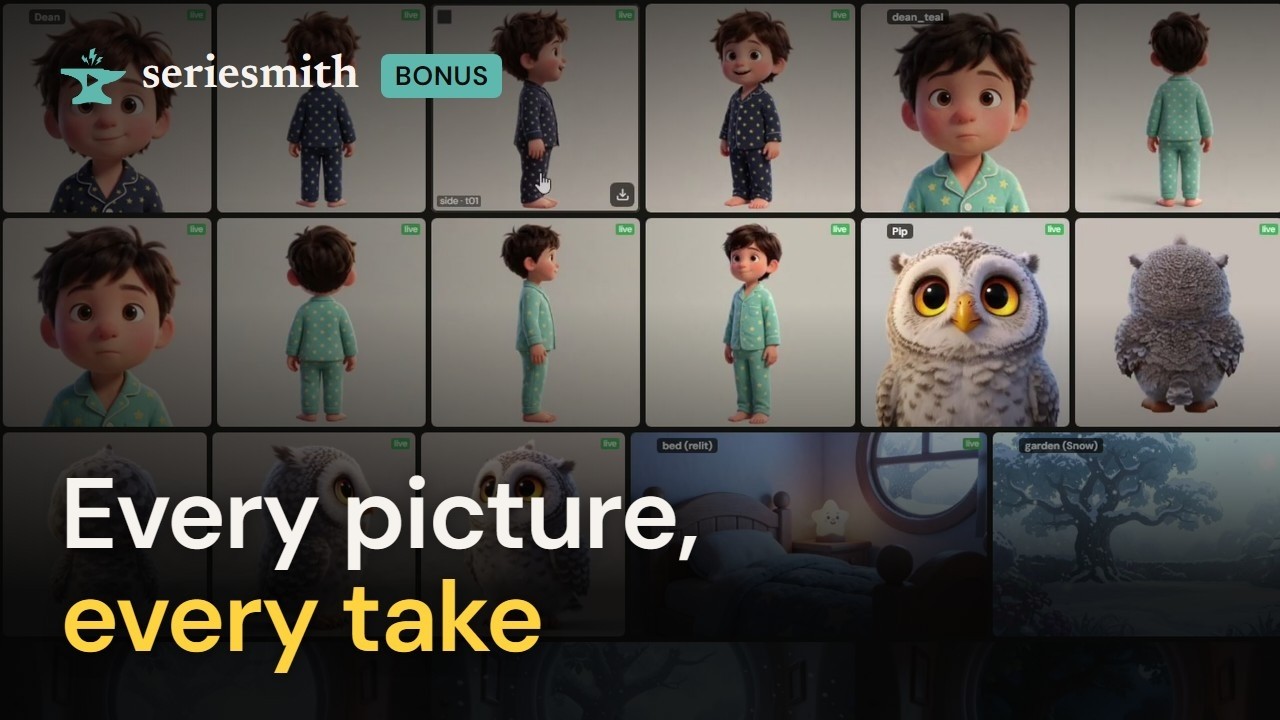
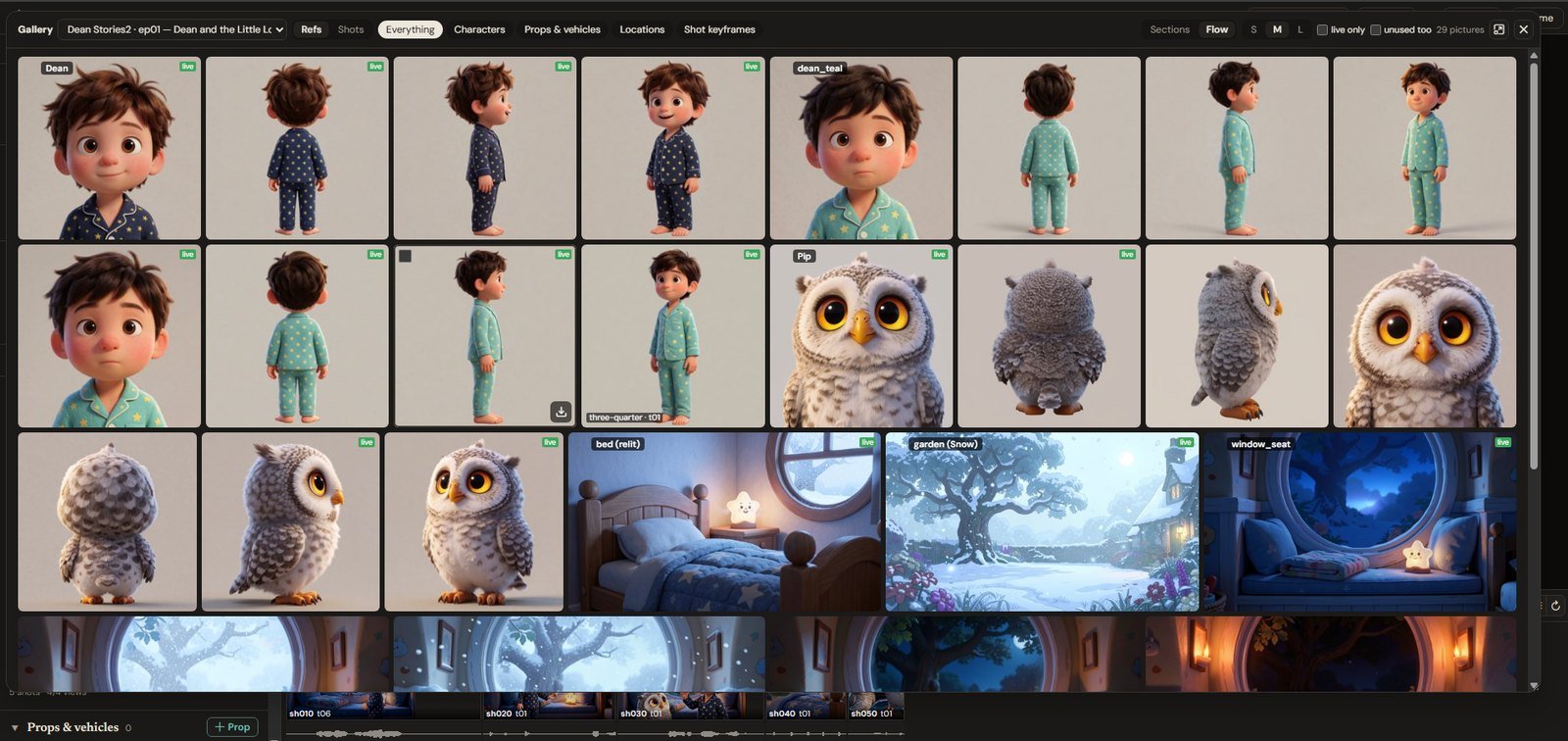
The gallery: every picture and every take, large.
1. Opening it
1
On one ref
In Refs, double-click Dean (his row, or his picture on the board). The gallery
opens with his live picture large.
2
Back to the grid
Press Esc: Dean’s section of the grid, every picture of him, the live ones badged
live. Click Everything for every ref.
3
On a group, or everything
Double-click a group’s header in Refs (Locations) to open it on that group, or press
Gallery beside the filters for every ref.
2. Arrow through
1
Open a picture
Click Dean’s face view.
2
Step with the arrows
→ steps to his next picture, and on into Dean in teal pajamas and Pip: the whole
grid in order, with no going back to it between pictures. ← steps back, Home and
End go to the ends.
3
Back where you were
Esc goes back to the grid, the last picture outlined, scrolled to where it is.
3. How it was made
Beside an open picture is what made it: its model, file, seed and settings, when, the prompt it was drawn with, and what it was drawn from.1
Follow what it was drawn from
Open one of Dean in teal pajamas’ views: drawn: edited from Dean (three-quarter).
Click Dean: the gallery is on Dean’s pictures.
2
Copy the prompt
Copy prompt puts the prompt on the clipboard, to run it somewhere else.
3
Compare with the live one
On a picture of Pip that isn’t live, Compare with live (or C) shows the two side
by side. It stays on as you arrow through the others.
4. Regenerate and Pick
1
Regenerate
Open a picture of the garden you like and press Regenerate: a new one with its own
prompt, model and settings and a new seed. (An edited picture is made again as the same
edit of the same picture.)
2
Pick
When it lands it’s first in the garden’s section, newest first. Pick makes it the
live picture the renders use.
5. The way you like it
- Sections or Flow: a section per ref, or one run of rows that fills each one, every ref’s pictures together and its name on the first.
- S / M / L: picture size. Both are remembered.
- live only: just each ref’s live picture.
- Hover a picture for its view and take.
6. Shots
1
Switch to Shots
Press Shots in the gallery’s header (or, in the Shots tab, Gallery, or
double-click a sequence’s header to open it on that sequence).
2
Pick what to see
The list: Every sequence, In the cut (each shot’s cut take), or one sequence;
cut only with a sequence shows just that sequence’s cut takes.
3
Scrub
Point at a take: it scrubs through its frames, and says what happens in the shot. The
cut’s take is badged cut, one with an upscale 2x.
7. A take, open
1
It plays
Click sh020’s first take. Space plays and pauses, , and . step a frame,
← → go to the next take.
2
What it was made with
The prompt this take rendered with (not the shot’s prompt now), its model, seed,
steps, size and upscale.
3
The pictures it was sent
Dean, Pip and the window seat. Pip and the window seat say changed since: they’ve
been redrawn since this take. Click one for its pictures.
4
Its upscale, the cut's take
2x plays its upscale. On another take, Compare with cut plays it beside the cut’s
take, in step.
8. Saving
1
One file
Point at a picture or a take and press its download icon.
2
A selection
Tick one (top left of a picture), then shift-click another further on: everything
between is ticked. With some ticked, a click ticks.
3
As one zip
The header says 4 selected: Download makes one zip,
ep01-gallery-4.zip, the
pictures whole and the takes’ videos. Esc or Clear clears the selection.9. Other episodes’ pictures
1
Episode 2
Choose ep02 in the gallery’s episode list. Episode 2 drew no pictures of its own,
yet Dean and the window seat fill with episode 1’s, badged ep01: the refs are
shared. The count reads “4…” while they’re still coming in.
2
unused too
Tick unused too: Pip, Mama Owl and the garden, which no shot of episode 2 uses, with
episode 1’s pictures.
3
Read-only here
Open one: Download, Copy prompt and Compare with live, but no Pick or
Regenerate. Each episode keeps its own; pick or regenerate it in episode 1.
Next
The gallery, every button
The editor guide’s section on it.
5 · References
Where the pictures come from.