

Watch tutorial 2 on YouTube
People and places: the same people again, someone of your own, places that stay.
1. The same face, every clip
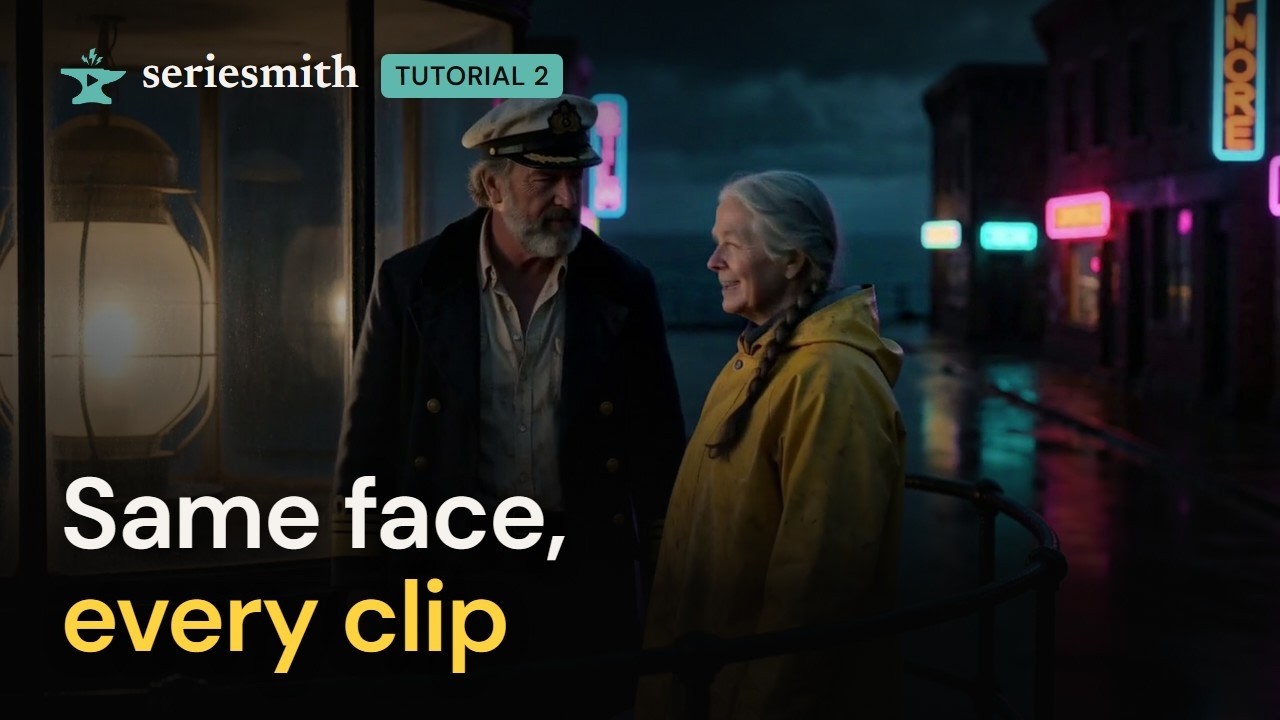
Once someone is created they are kept with the project. You pick them by their picture instead of describing them again, so they look the same in every clip.1
Start a new clip
In Simple mode, with the project from tutorial 1 open, choose A clip and type a new
action in What happens?.
2
Pick Mara
Under Who, press select… and click Mara’s picture.
3
Pick the place
Under Where, pick the lighthouse gallery by its picture the same way.
4
Generate
Press Generate. Her views and the plate are made already, so the take starts at
once.
2. Someone from a picture you have
A photo, a portrait or a drawing can be a person. It is taken in as it is: one picture, nothing generated.1
Create someone
Under Who, press + Create. Name him Tomas and write a few words about him (the
description is still said in every shot he’s in, beside his picture).
2
Choose his picture
Press Choose…, find the picture anywhere on this PC in the file browser, and pick it.
3
Add him
Press Add. His picture is used as it is: no views are drawn from it. He joins Who.
3. Two people, two lines
1
Both of them in Who
Have Mara and Tomas in Who. The order matters (it’s the order they’re
described in): ‹ moves someone earlier, × takes them out of this clip (they stay
in the project). Pick the gallery under Where again.
2
Write the lines
Under Said, press + Line for each line, choose who says it, and type the words.
Add them in the order they’re spoken.
3
Let the length fit the lines
Set Length to auto: the clip is as long as the lines take to say, at the
project’s speech pace.
4
Generate, then play them all
Press Generate. When the take is in, Play all plays every clip in order, cut
together: the same Mara, the same gallery, clip after clip.
4. A place from words, and a new take
Where has a third choice besides a place you picked or created: from description.1
Choose from description
Under Where, choose from description, and describe the place inside What
happens? (a harbour, say). The words are the place: there is no plate.
2
Generate
Press Generate and let the take finish.
3
Ask for another take
Right-click the clip and choose New take like this one…. It re-renders the same
words with a new seed (the dialog’s default). Press its generate button.
4
Compare the two
Right-click the clip → Compare with… to see the takes side by side or under a wipe.
The harbour is different each time: from description, a place is imagined anew in every
take.
5
Keep the one you want
Use this take (on the take’s menu) puts it in the cut. A take you don’t want:
Discard take… moves it to the episode’s
_trash/ folder; nothing is deleted.Doing a take again
Next
3 · Screenplay to episode
A project keeps its people and places together; a series is a script, every shot of an episode.
The editor: Simple mode
Every control in the Make panel.