

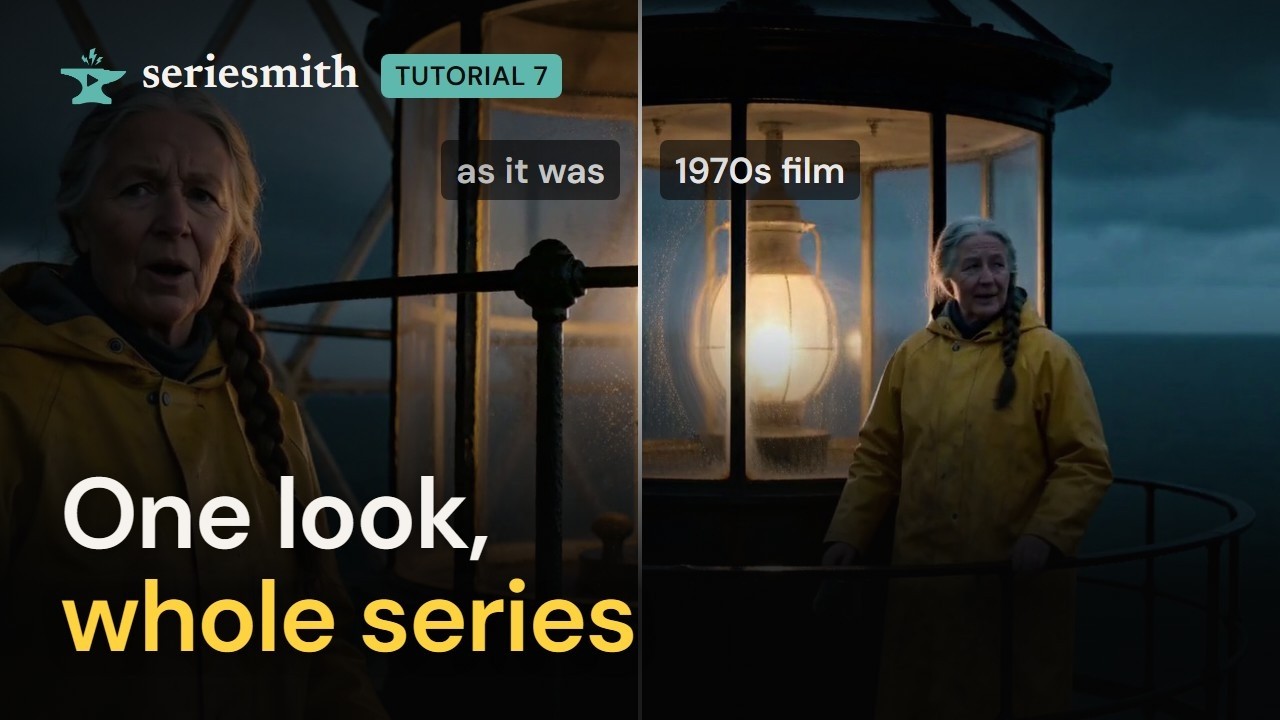
Watch tutorial 7 on YouTube
The look builder: the whole series, another look.
style.look): how the whole show is
shot or drawn. It opens every shot’s prompt and every picture’s. This tutorial changes the
look of the live-action Clips project from tutorials 1 and 2 (Mara at the lighthouse).
1. Pick a look from pictures
1
Open Series settings
The cog in the Shots toolbar (Advanced mode) → Series settings → Look. (The
series wizard’s Series step has the same row.)
2
Browse the presets
Every look is a picture of the same woman in a red coat at a tram stop, so they compare:
live action (prestige drama, neon noir, 1970s film, documentary, black and white),
genres (western, thriller, horror, 80s VHS…), animation (3D animated, 2D cartoon,
anime, stop-motion) and illustration (watercolor, graphic novel…).
3
Pick one
Click 1970s film. It fills the look line, which is still yours to edit.
A genre’s picture shows its world (a frontier town, a desert highway), but the line is
only the look: light, lens, grade, stock. Your locations and characters decide where the
story is, so a western look on a city street is a dusty, sun-bleached city.
2. Build the look from its parts
1
Open Build the look
Under the presets, Build the look shows a row for each part, a picture for each
choice: Medium, Camera, Lens, Film / sensor, Light, Grade.
2
Pick a part at a time
Start with the medium, then the camera and lens, the film stock, the light and the grade.
Each pick adds what a director of photography would say of it (anamorphic lenses: oval
bokeh, horizontal lens flares…), and the line rewrites itself. A second click on a pick
clears it. A drawn or animated medium folds Camera, Lens and Film away.
3
Start from a preset, if you like
A look preset sets the rows too, so you can pick 1970s film and change only its grade.
4
Edit the line by hand (optional)
Once you type into the line yourself, the picks leave it alone. Use the built line
puts theirs back.
5
Save as a preset…
Press Save as a preset… under the line. It’s offered under Yours in every show on
this machine. Give its tile a picture with the picture button on it: Render it on the
sample scene, take it from your work (a frame of a take, or a picture in Refs), or
import a picture.
6
Save the series settings
Save. The look is written into
series.json, its picks kept as style.look_parts.3. What it does
The look goes into every picture too, and on a model that renders from pictures (H3) the plate and the character’s views carry most of it. So make them again under the new look before re-rendering the shots.1
Regenerate the pictures
Refs → the place’s plate and each character’s views → Generate, then Pick the
new ones. (Or Generate missing after clearing them.)
2
Re-render stale
The shots that used the old pictures are now
stale. Press Re-render stale: each is
rendered at the same seed, so the new take differs by the look and nothing else.3
Compare
Right-click the new take → Compare with… the old: c001 before, and in the 1970s look.
Next
8 · Shot direction
How close, from where, and how the camera moves.
Writing the look line
What a good look line says, and what it leaves out.