

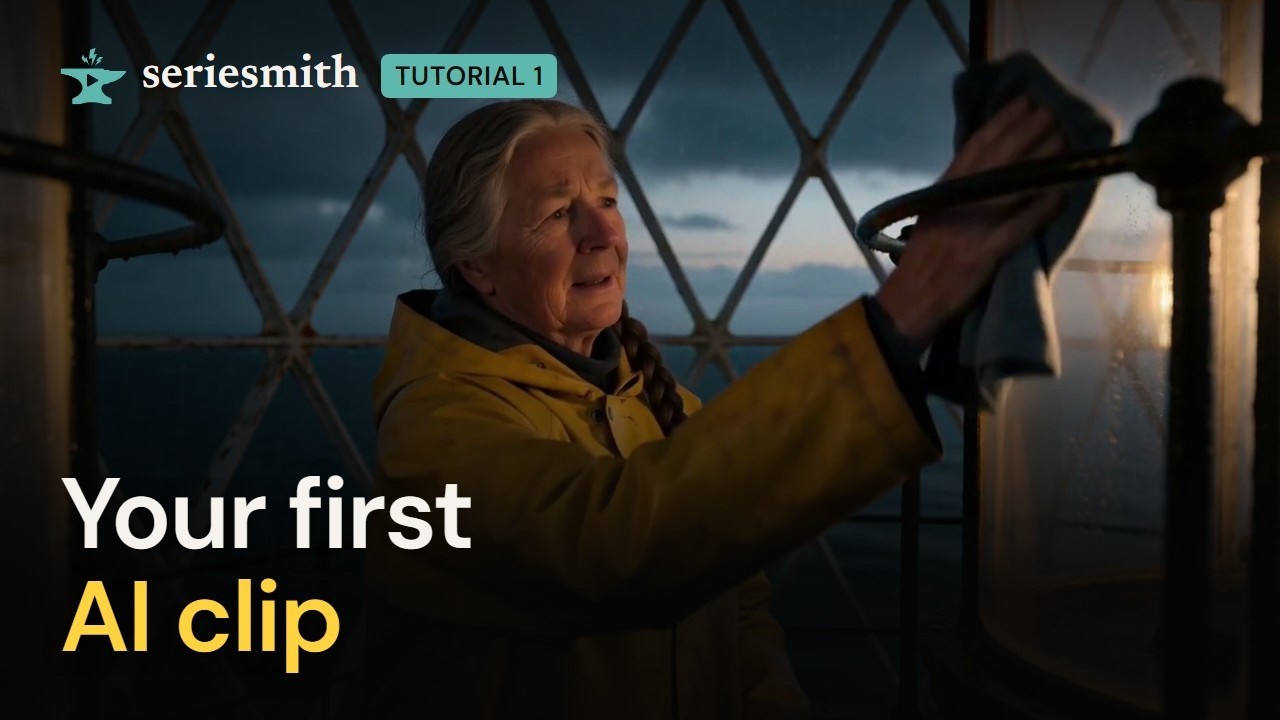
Watch tutorial 1 on YouTube
Install to first clip: four ways in, the models, your first clip.
1. Install seriesmith
Pick one of these four. All of them end in the same place: the seriesmith editor open, either in ComfyUI’s sidebar or on its own page.- ComfyUI-Manager
- comfy-cli
- A clone in custom_nodes
- A page of its own
The usual way, and the one to pick if you’re unsure.
1
Make sure Manager is there
Look for the Manager button in ComfyUI’s top bar. A new portable ComfyUI has
Manager built in but not installed or switched on. In the portable’s folder, run:Then start ComfyUI with
--enable-manager (add it to the end of the line in
run_nvidia_gpu.bat):2
Install the node pack
Open Manager → Custom Nodes Manager, type seriesmith in the search box, and
press Install on its row.
3
Restart ComfyUI
When Manager asks, press Apply Changes (or Restart). Reload the browser tab
once ComfyUI is back.
4
Check it's there
seriesmith Shots and seriesmith Refs are in ComfyUI’s left sidebar, and
seriesmith Timeline in the bottom panel.
2. Add the two models
FastH3 Omni makes the video (MiniMax H3 distilled to 8 steps: a 3-second take is about a minute) and Krea 2 makes the pictures (6 to 10 seconds each). Both are just model files: no other node packs, no LoRAs.1
Open Features
Settings → Features…. It lists what this install can add, grouped: video and picture
models, voices, upscaling, post-processing and more. Each has a status: Installed,
Partly installed or Not installed.
2
Tick FastH3 Omni and Krea 2
FastH3 Omni is under the video models, Krea 2 under the picture models. The chevron on
a row lists its files, the folder each goes in and its size; the foot adds up what the
ticked features will download.
3
Install
Press Install. The card on top follows each download and has Stop (a stopped
download resumes next time). The files go into ComfyUI’s own models folders.
4
Wait for Installed
Both rows read Installed. If these are the only models on the machine, they are now
its defaults (Krea 2 for pictures, FastH3 Omni for video), so there is nothing else to set.
3. Make your first clip
1
Open Simple mode
Open seriesmith Shots in ComfyUI’s sidebar (or the page of its own) and choose
Simple at the top. The sidebar becomes one Make panel.
2
Start a project of its own (recommended)
The panel’s title is the project. Open its dropdown → Browse and add new… → New
series/project…, and give it a name (First clip). Its clips, people and places stay
together in a folder of its own. You can also just use the Clips project that’s
there already.
3
Choose A clip
Pick A clip (the others are A picture, Several shots and A series…).
4
Create the person
Under Who, press + Create. Give a name, Mara, and what she looks like:Leave the picture empty and press Add. Her picture is made from those words on
Krea 2: four views of her (three-quarter, side, back and face), so she looks the same in
every shot. She is now in Who.
5
Create the place
Under Where, press + Create. Name it Lighthouse gallery and describe it:Its picture (the place’s plate) is made there and then, and the place becomes this
clip’s Where. Both are kept for the next clip.
6
Say what happens
In What happens?, describe the shot as you would to a camera crew: who does what,
in the present tense.
7
Give her a line
Under Said, type her line under her name: There you are.
8
Set the length, framing and size
Length 3 (seconds; lengths beside it lists what suits what), Framing
medium, and leave Size at the project’s.
9
Generate
Press Generate. Anything the clip still needs (Mara’s views, the place’s plate) is
made first, on the same queue, then the take. One press does both. On FastH3 Omni the
take takes about a minute; Jobs in the top bar shows where it is.
10
Play it
The clip is under Your clips, newest first. Click it to play its take in the viewer:
her face, the place, her line.
Next
2 · People and places
Mara again, someone from a photo, two people talking, and new takes.
3 · Screenplay to episode
A whole episode from a script.